
How to Find and Remove Duplicates in Google Sheets
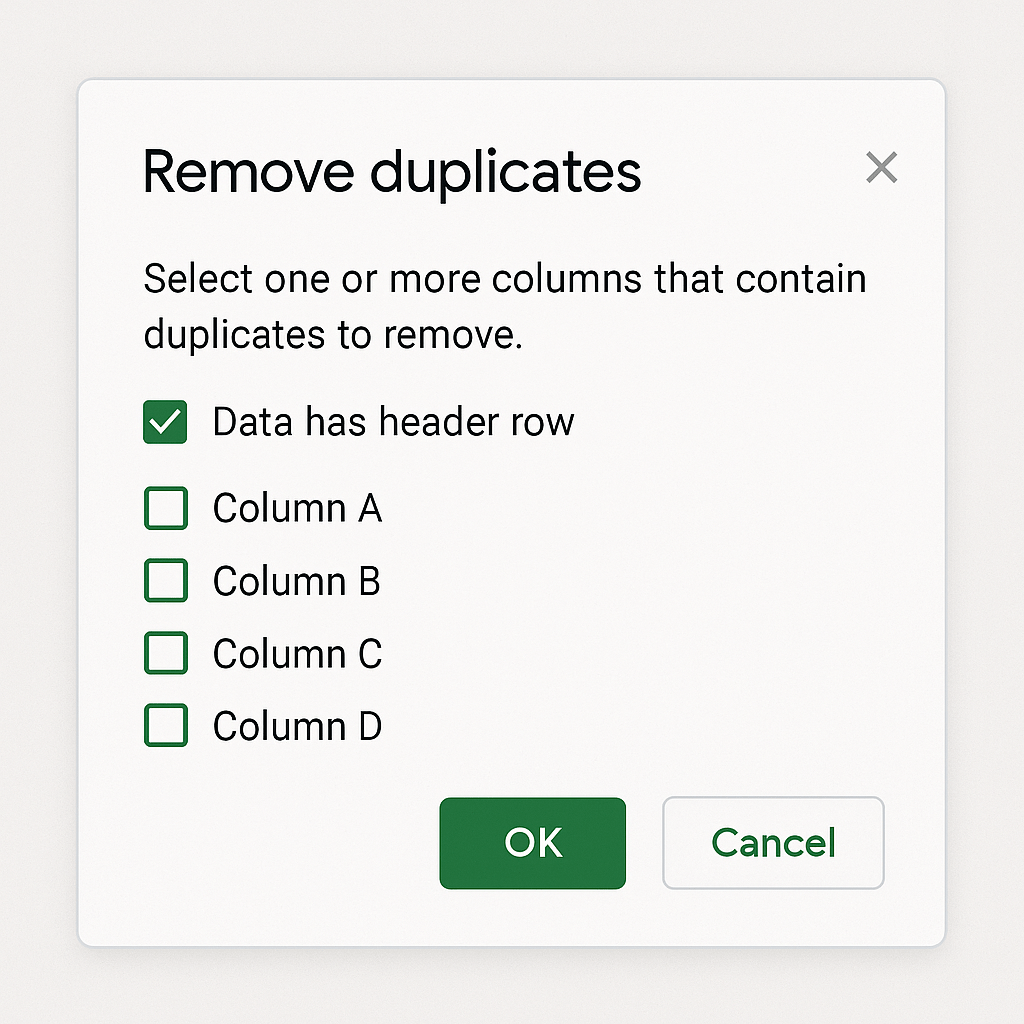
If you manage any spreadsheet for emails, form entries, sales leads, or reports, duplicates can mess up your counts and accuracy. Google Sheets gives you multiple ways to find and remove duplicates, from built-in tools to advanced formulas and even automation. This guide walks you through all five methods, so you can choose what fits your workflow best—no matter your skill level.
What Counts as a Duplicate in Google Sheets?
A duplicate means two or more identical rows or values in a range. These can exist:
- In a single column (like email addresses)
- Across multiple columns (entire repeated rows)
- In visually similar but technically distinct values (like “John Doe” and “john doe”)
Method 1: Use the Built-in “Remove Duplicates” Tool
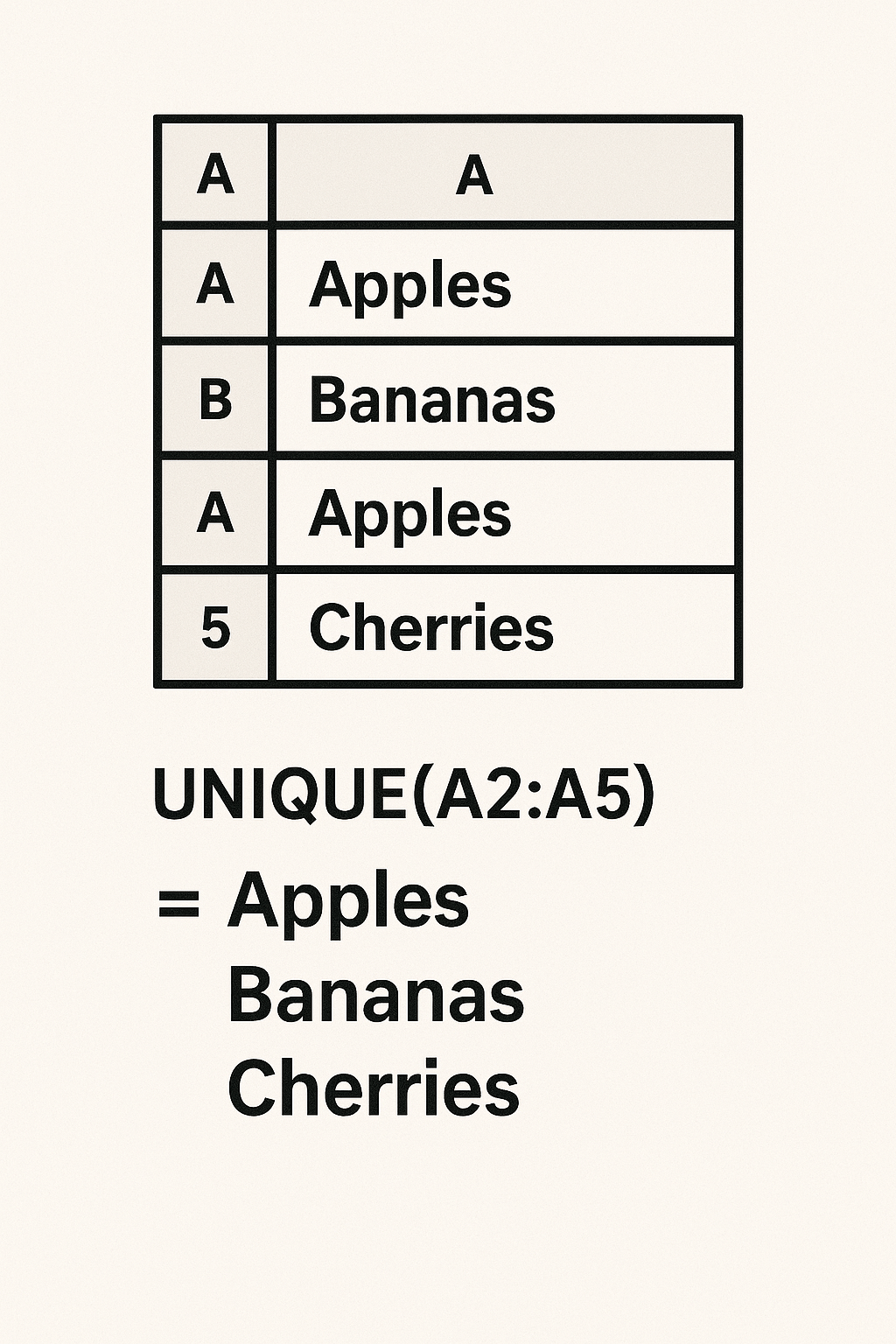
- Select your data range
- Click
Data > Data cleanup > Remove duplicates - Choose if your data has a header
- Select columns to check
- Click “Remove duplicates”
Best For: Quick cleanup across large ranges
Method 2: Highlight Duplicates with Conditional Formatting
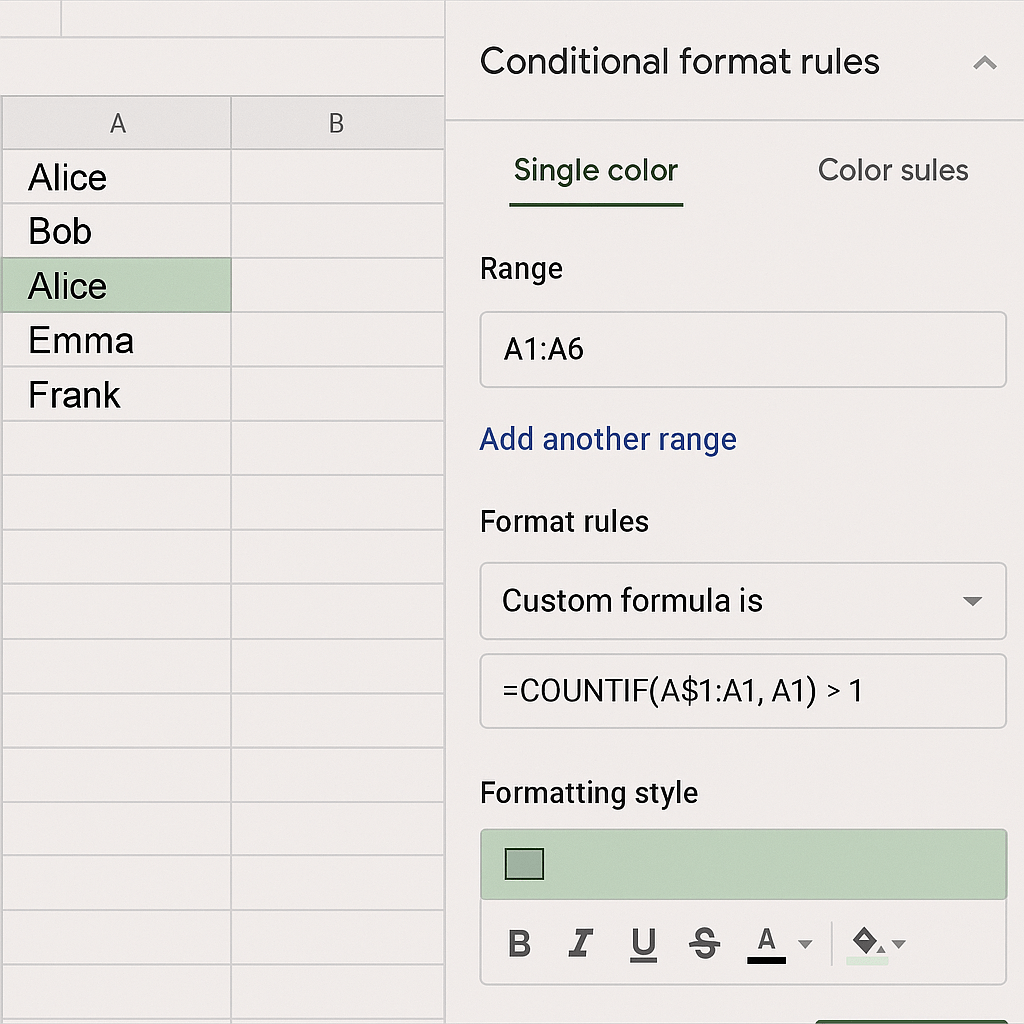
Use a formula like:
=COUNTIF(A:A, A1)>1
Steps:
- Go to
Format > Conditional Formatting - Choose “Custom formula is”
- Enter formula and pick a highlight color
Best For: Visual review before deleting
Method 3: Use the UNIQUE Function to Filter Duplicates
Example:
=UNIQUE(A2:A100)
Creates a new list that excludes all duplicates.
Best For: Creating deduplicated outputs without touching the source
Method 4: Create a Pivot Table to Spot Duplicates
Steps:
- Insert pivot table:
Insert > Pivot Table - Add all columns as Rows
- Turn off “Show totals”
- Optionally add COUNTA in “Values” to count duplicates
Best For: Dynamic deduplication and analysis
Method 5: Automate Duplicate Removal with Apps Script
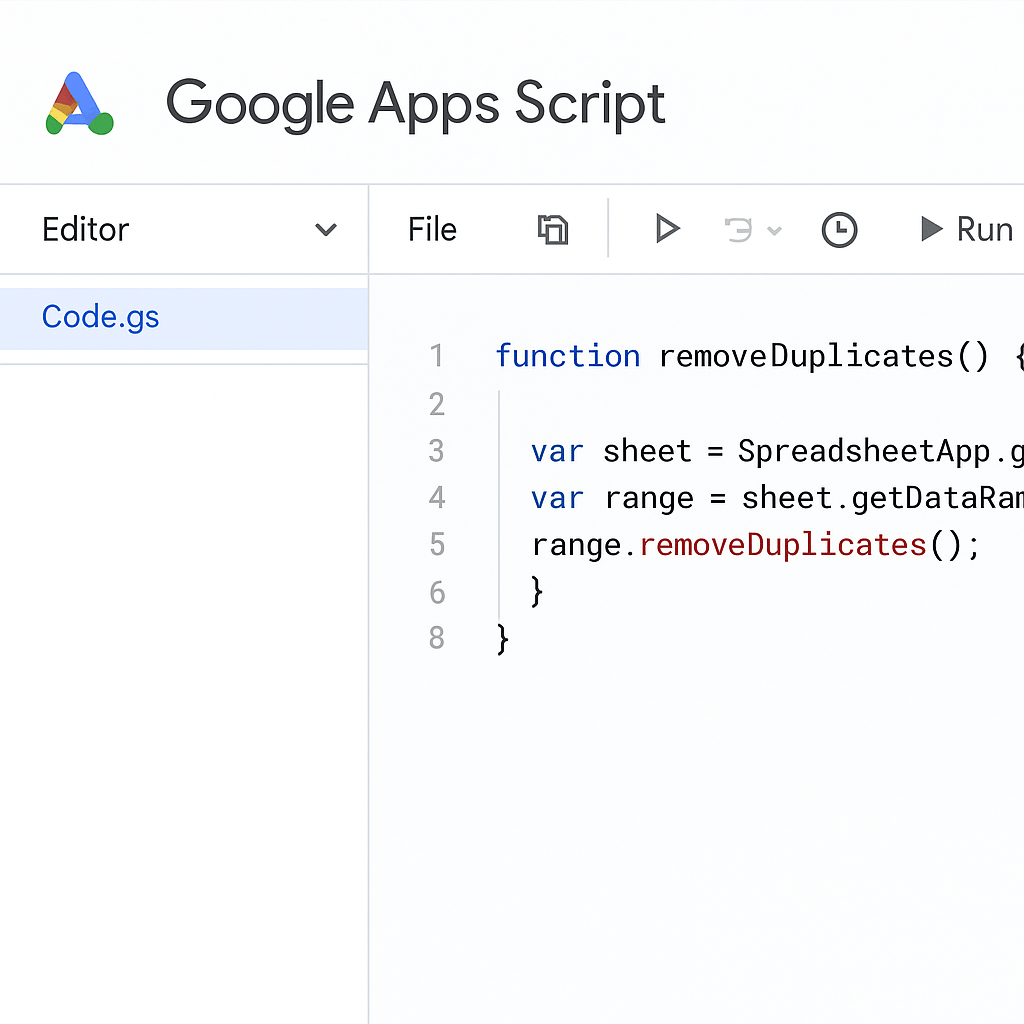
Paste this in Extensions > Apps Script:
function removeDuplicates() {
  var sheet = SpreadsheetApp.getActiveSpreadsheet().getActiveSheet();
  var data = sheet.getDataRange().getValues();
  var unique = [];
  var seen = {};
  for (var i = 0; i < data.length; i++) {
    var row = data[i].join();
    if (!seen[row]) {
      seen[row] = true;
      unique.push(data[i]);
    }
  }
  sheet.clearContents();
  sheet.getRange(1, 1, unique.length, unique[0].length).setValues(unique);
}
Best For: Auto-removing duplicates from dynamic imports
Bonus: Prevent Duplicate Entries with Data Validation
=COUNTIF(A$2:A2, A2)=1
Use under Data > Data validation > Custom formula is
Best For: Proactively blocking repeats
FAQs on Google Sheets Duplicate Handling
How do I find duplicate rows in Google Sheets?
Use conditional formatting with =COUNTIF(range, cell)>1 to highlight.
How do I remove duplicates without deleting data?
Use UNIQUE() or pivot tables to extract only unique records.
Can I automate this process?
Yes, with Google Apps Script or Google Workspace add-ons.
Leave a Reply