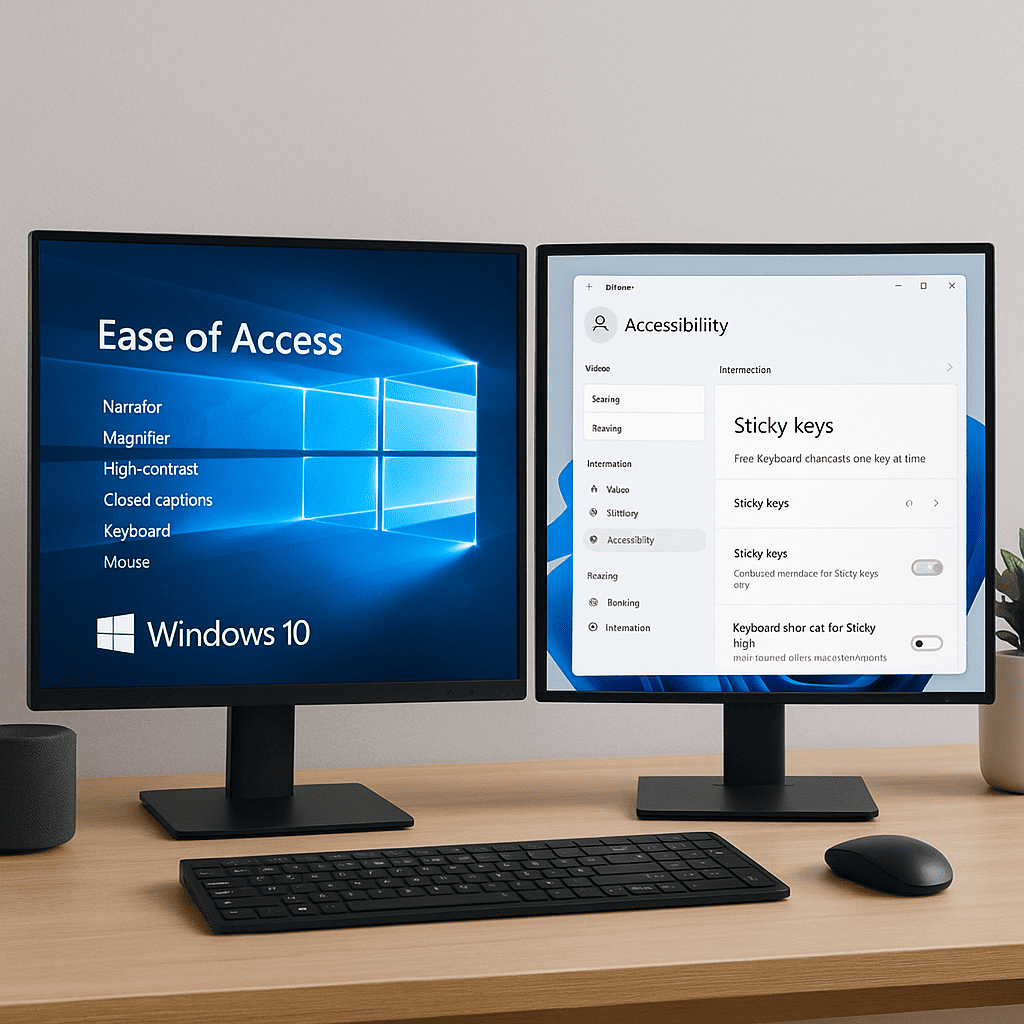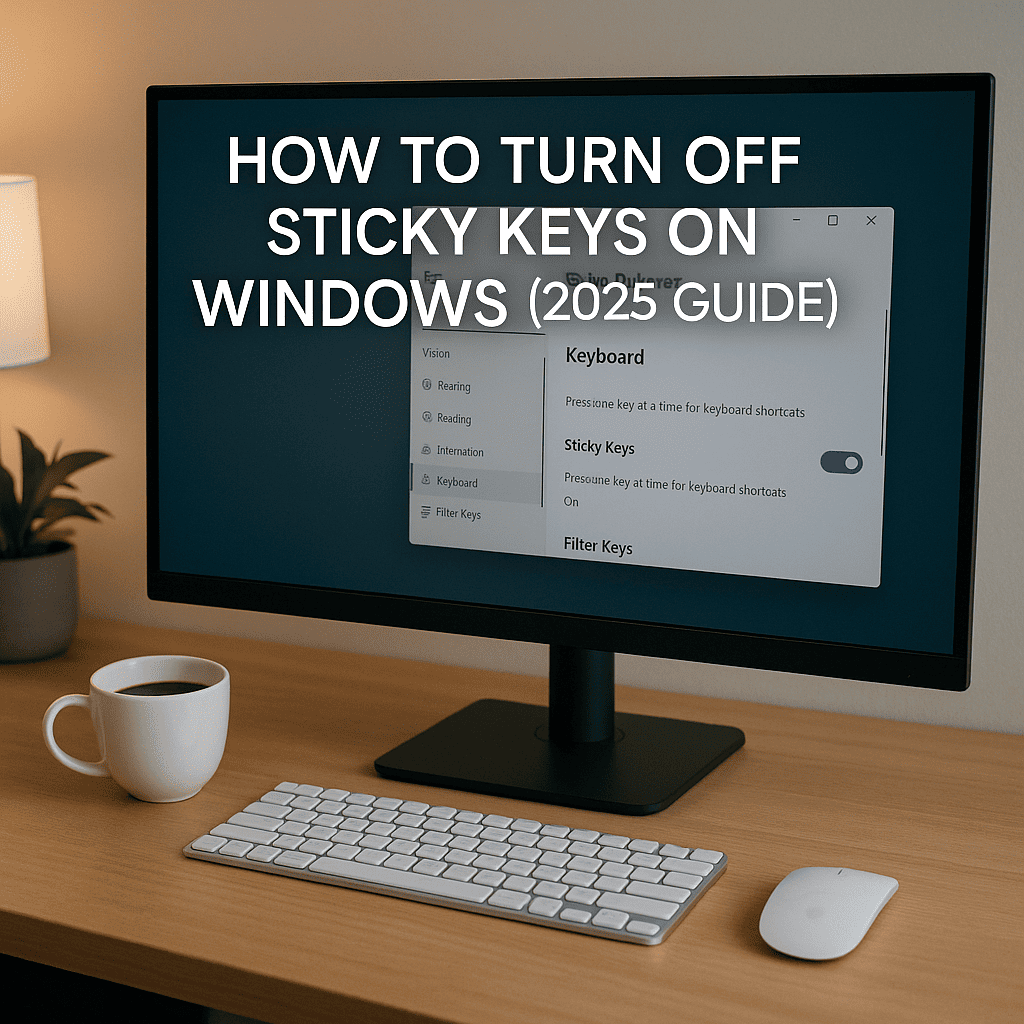
Sticky Keys can be a helpful Windows feature, especially for those who need to press multiple keys simultaneously. However, if you find it more of a hindrance, we’re here to help you disable it. In this guide, we’ll walk you through the process of turning off Sticky Keys on various Windows versions and provide troubleshooting tips if you encounter any issues.
What Are Sticky Keys?
Sticky Keys is an accessibility feature in Windows that allows users to press one key at a time for keyboard shortcuts instead of having to press multiple keys simultaneously. This can be particularly useful for individuals with mobility impairments.
Turning Off Sticky Keys
Windows 10 and Windows 11
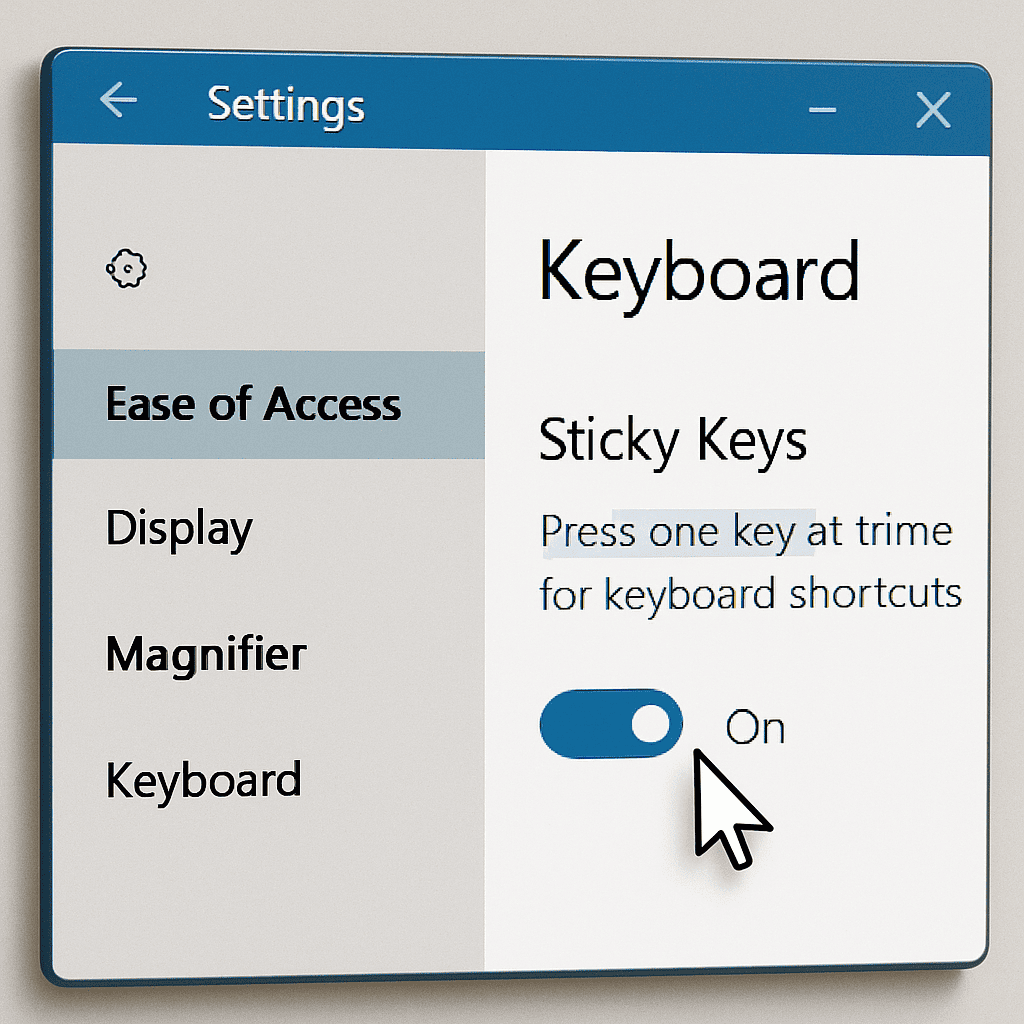
- Press the Windows key and select Settings.
- Navigate to Ease of Access.
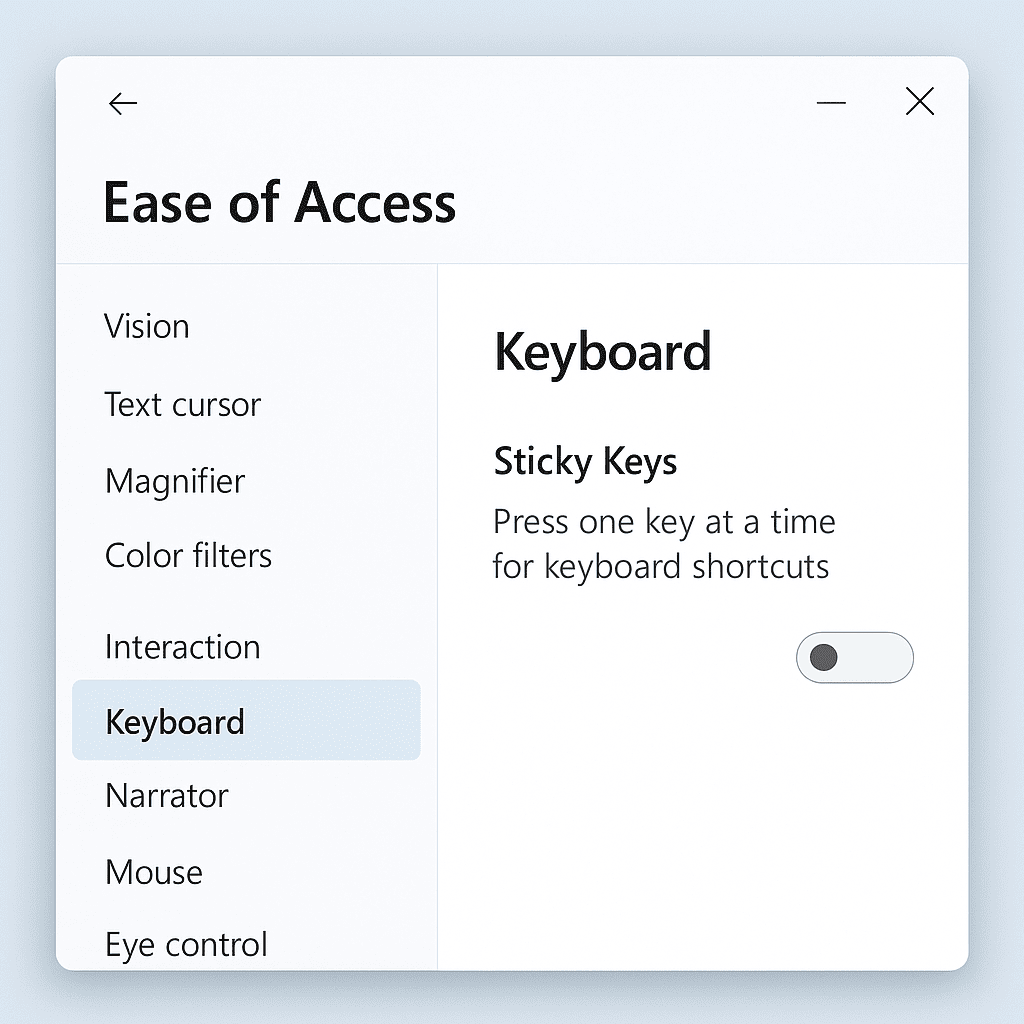
- Select Keyboard from the left-hand menu.
- Toggle off the Sticky Keys feature.
Windows 7 and Windows 8
- Go to Control Panel.
- Select Ease of Access and then Ease of Access Center.
- Click on Make the keyboard easier to use.
- Uncheck the box for Turn on Sticky Keys.
Troubleshooting Tips
If Sticky Keys won’t turn off, try the following:
- Restart your computer to ensure changes take effect.
- Check for and install any pending Windows updates.
- Ensure no third-party software is interfering with keyboard settings.
Following these steps should help you disable Sticky Keys on your Windows device, ensuring a smoother and more customized experience.
Introduction to Sticky Keys
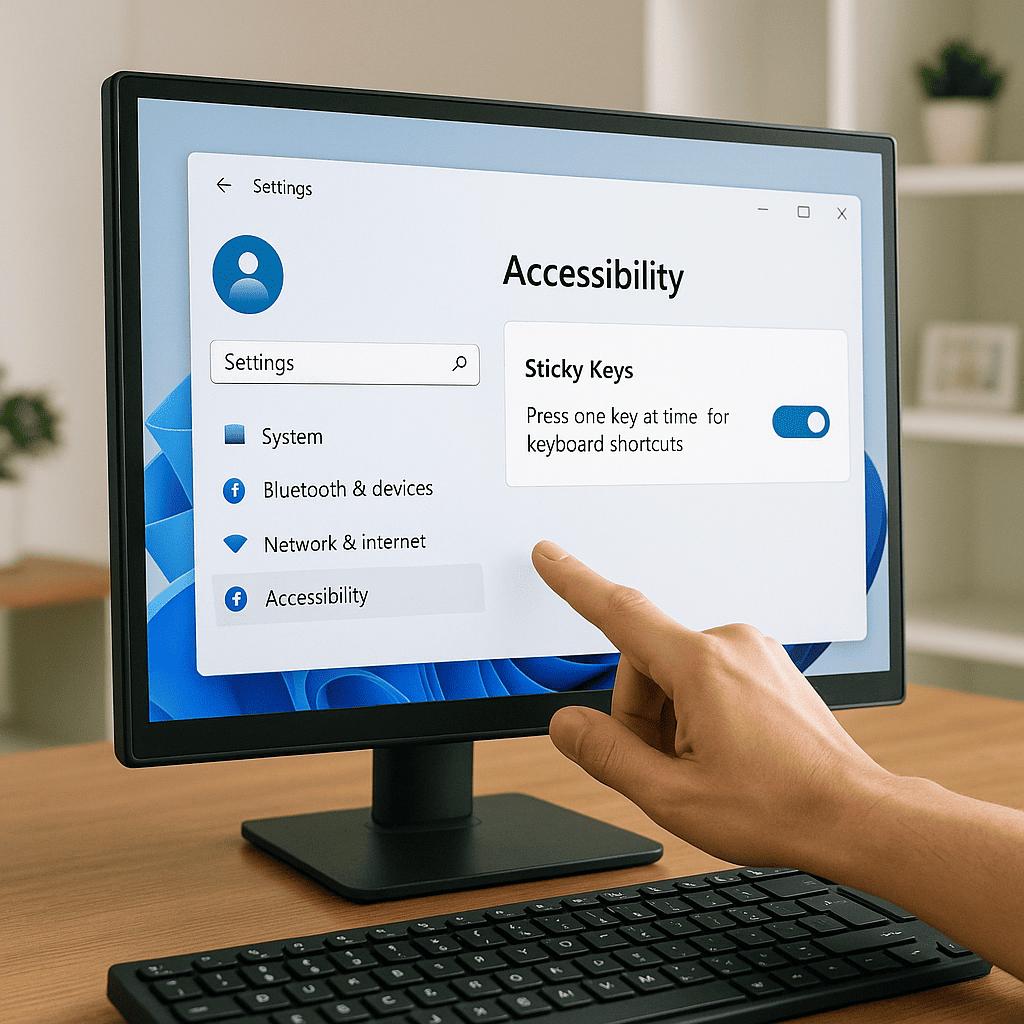
If you’ve ever accidentally activated Sticky Keys while typing, you might have wondered, “what are Sticky Keys” and what purpose they serve. Sticky Keys is an accessibility feature designed to help users who have difficulty pressing multiple keys simultaneously. By allowing one key to be pressed at a time, Sticky Keys makes keyboard shortcuts more manageable for everyone, especially those with physical disabilities.
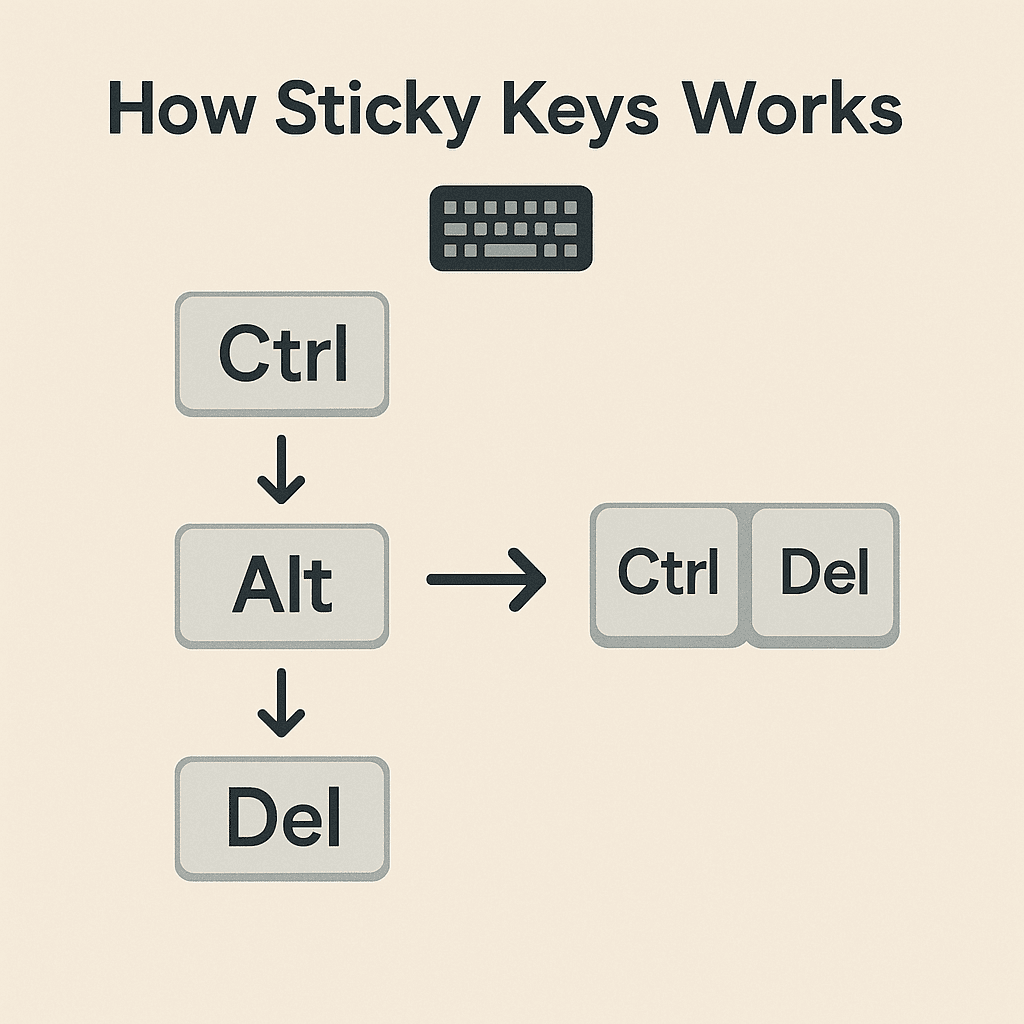
The purpose of Sticky Keys is to simplify keyboard interactions. Imagine needing to press Ctrl, Alt, and Delete at the same time – a challenging task for some. Sticky Keys eliminates this hurdle by allowing each key to be pressed in sequence instead of simultaneously. This not only eases the typing process but also reduces strain on your hands and fingers, providing significant benefits for those with limited mobility.
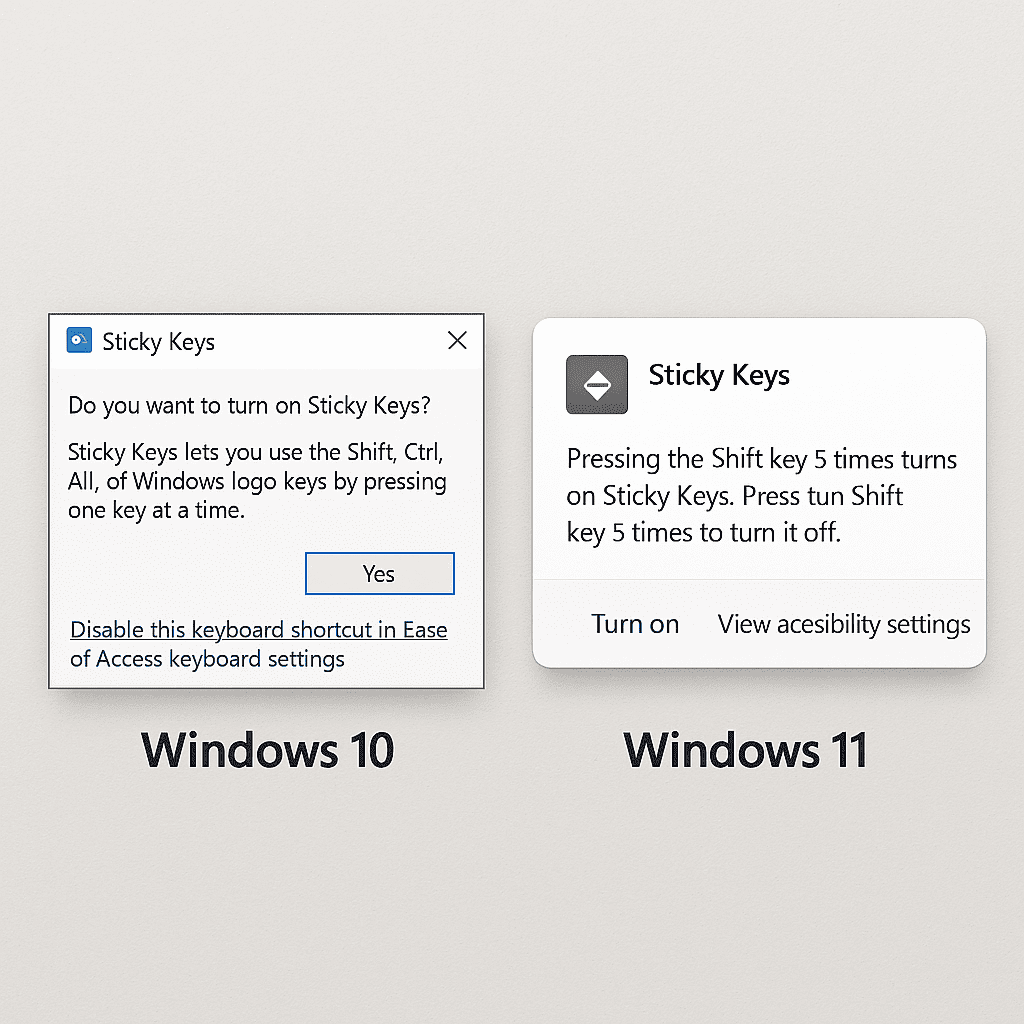
Sticky Keys can be triggered in various scenarios. Typically, it activates when the Shift key is pressed five times in a row, often by accident. However, this feature can be a lifesaver for users who rely on it for daily computer tasks. Whether you need it for accessibility or have inadvertently turned it on, understanding Sticky Keys is essential.
To learn more about accessibility features and how they can enhance your computing experience, check out our detailed guides.
How Sticky Keys Work
Understanding how Sticky Keys work is crucial for anyone who wants to modify their keyboard behavior for accessibility or convenience. When you enable Sticky Keys, it lets you press and release a modifier key, such as Shift, Ctrl, Alt, or the Windows key, and have it remain active until you press another key. This way, you do not have to press multiple keys simultaneously, which can be particularly helpful for users with physical limitations.
Imagine you need to perform the keyboard shortcut Ctrl + Alt + Delete. With Sticky Keys enabled, you can press Ctrl, release it, then press Alt, release it, and finally press Delete. The system registers this sequence as if you held down all three keys at once.
“Sticky Keys functionality simplifies complex keyboard shortcuts, making them more accessible to users who find simultaneous key presses challenging.”
Here are some common keyboard shortcuts that benefit from Sticky Keys:
- Ctrl + C to copy text
- Ctrl + V to paste text
- Alt + Tab to switch between open applications
- Shift + Arrow Keys to highlight text
For a visual guide, check out this video demonstration of Sticky Keys to see these shortcuts in action.
How to Turn Off Sticky Keys on Windows 11
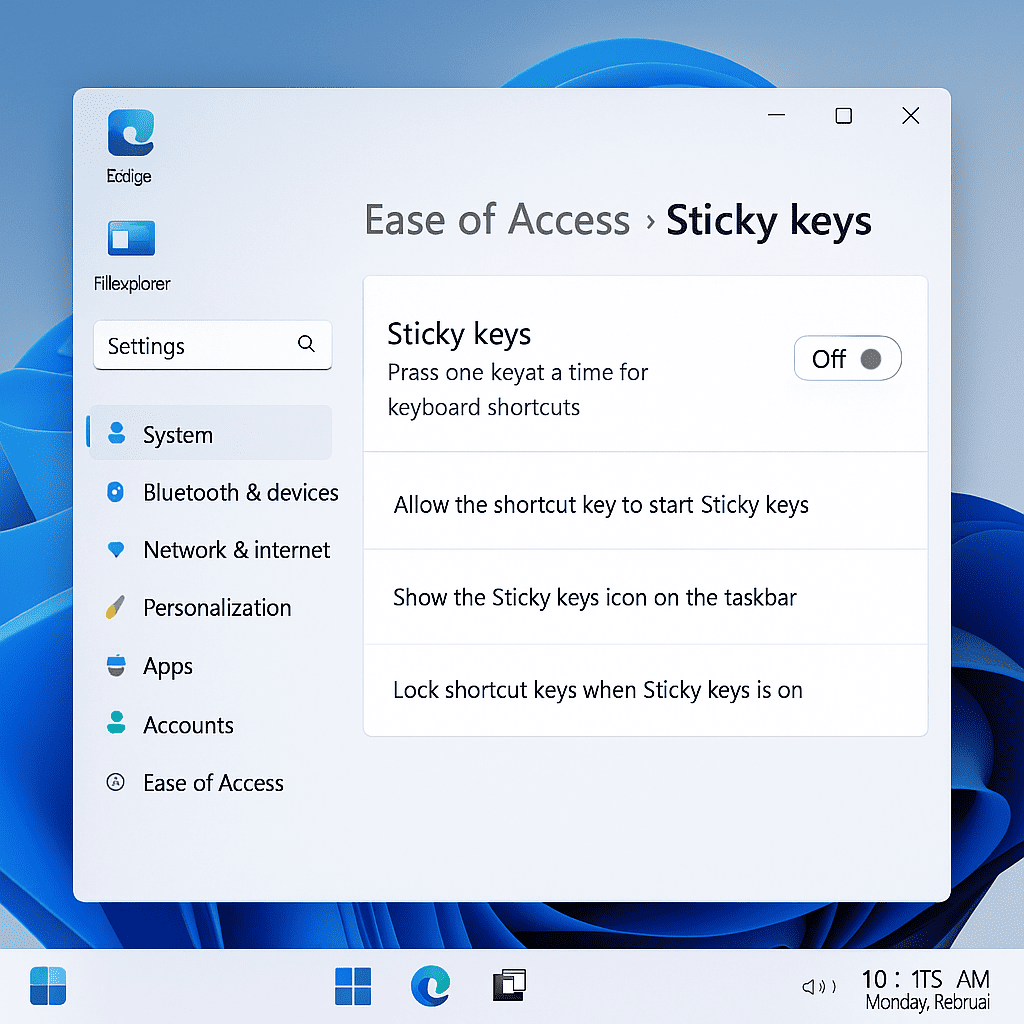
Sticky Keys can be a helpful feature for some, but if you find it more of a nuisance, you’re probably eager to turn it off. Fortunately, doing so on Windows 11 is straightforward. Let’s walk through the process step-by-step.
- Step 1: Accessing the Ease of Access settings
- First, you need to open the Ease of Access settings. To do this, click on the Windows icon on your taskbar to open the Start menu, then select ‘Settings’. In the Settings window, navigate to ‘Accessibility’ from the left-hand menu.
- Step 2: Navigating to the Keyboard settings
- Once you’re in the Accessibility menu, scroll down and click on ‘Keyboard’. This will bring up all the keyboard-related settings, including options for Sticky Keys.
- Step 3: Disabling Sticky Keys
- In the Keyboard settings, look for the section labeled ‘Sticky Keys’. Here, you will find a toggle switch that you can turn off to disable Sticky Keys. Simply click on the switch, and Sticky Keys will be turned off immediately.
If you want to explore more about the latest Windows features, we have more detailed articles available.
How to Turn Off Sticky Keys on Windows 10
If you are looking to turn off Sticky Keys on Windows 10, the process is straightforward and user-friendly. Here’s a step-by-step guide to help you disable Sticky Keys and return to a smooth typing experience.
- Step 1: Accessing the Ease of Access Settings
- Begin by clicking the Start button, then navigate to Settings (the gear icon). From there, select Ease of Access. This section is specifically designed to help you manage accessibility features on your device.
- Step 2: Navigating to the Keyboard Settings
- Within the Ease of Access menu, scroll down and click on Keyboard in the left-hand sidebar. This is where you can adjust all keyboard-related accessibility settings, including Sticky Keys.
- Step 3: Disabling Sticky Keys
- In the Keyboard settings, find the section labeled Use Sticky Keys. Toggle the switch to the Off position to disable Sticky Keys on Windows 10. Ensure that the checkbox for the shortcut to turn on Sticky Keys is also unchecked to prevent it from being activated accidentally in the future.
And that’s it! By following these steps, you can easily turn off Sticky Keys on Windows 10 and continue using your computer without interruptions. For more information on Windows 10 accessibility features, you can check our detailed article on Windows 10 accessibility.
How to Turn Off Sticky Keys on Windows 8 and 8.1
If you’re using Windows 8 or 8.1 and need to turn off Sticky Keys, you’re in the right place. Let’s walk through the process step-by-step to make it easy for you.
Step 1: Access the Ease of Access Settings
First, you need to open the Ease of Access settings. To do this, press the Windows key on your keyboard, then type “Ease of Access” in the search bar. Select Ease of Access Center from the results.
Step 2: Navigate to Keyboard Settings
Once you’re in the Ease of Access Center, find and click on the “Make the keyboard easier to use” option. This will take you to the keyboard settings where you can manage various keyboard accessibility features.
Step 3: Disable Sticky Keys
In the keyboard settings, locate the “Turn on Sticky Keys” option. Simply uncheck the box next to this option to disable Sticky Keys. Don’t forget to click Apply and then OK to save your changes.
And that’s it! You’ve successfully turned off Sticky Keys on your Windows 8 or 8.1 computer. If you need further assistance, don’t hesitate to reach out. We’re here to help!
How to Turn Off Sticky Keys on Windows 7
If you are using Windows 7 and find the Sticky Keys feature more of a hindrance than a help, you can easily disable it through the Ease of Access settings. Here’s how to turn off Sticky Keys on Windows 7 in just a few simple steps.
Accessing the Ease of Access Settings
First, you need to open the Control Panel. You can do this by clicking on the Start menu and selecting Control Panel from the list.
Once the Control Panel window is open, look for the Ease of Access option. Click on it to proceed to the next step.
Navigating to the Keyboard Settings
In the Ease of Access Center, you will find various settings designed to make your computer easier to use. Locate and click on the Change how your keyboard works link.
This will take you to the keyboard settings where you can customize features like Sticky Keys.
Disabling Sticky Keys
In the keyboard settings, you will see an option labeled Make it easier to type. Under this section, find the checkbox for Turn on Sticky Keys. To disable Sticky Keys, simply uncheck this box.
After unchecking the box, click on the Apply button followed by OK to save your changes.
And that’s it! You have successfully disabled Sticky Keys on Windows 7. If you ever need to re-enable it, just follow these steps in reverse.
Troubleshooting Sticky Keys Issues
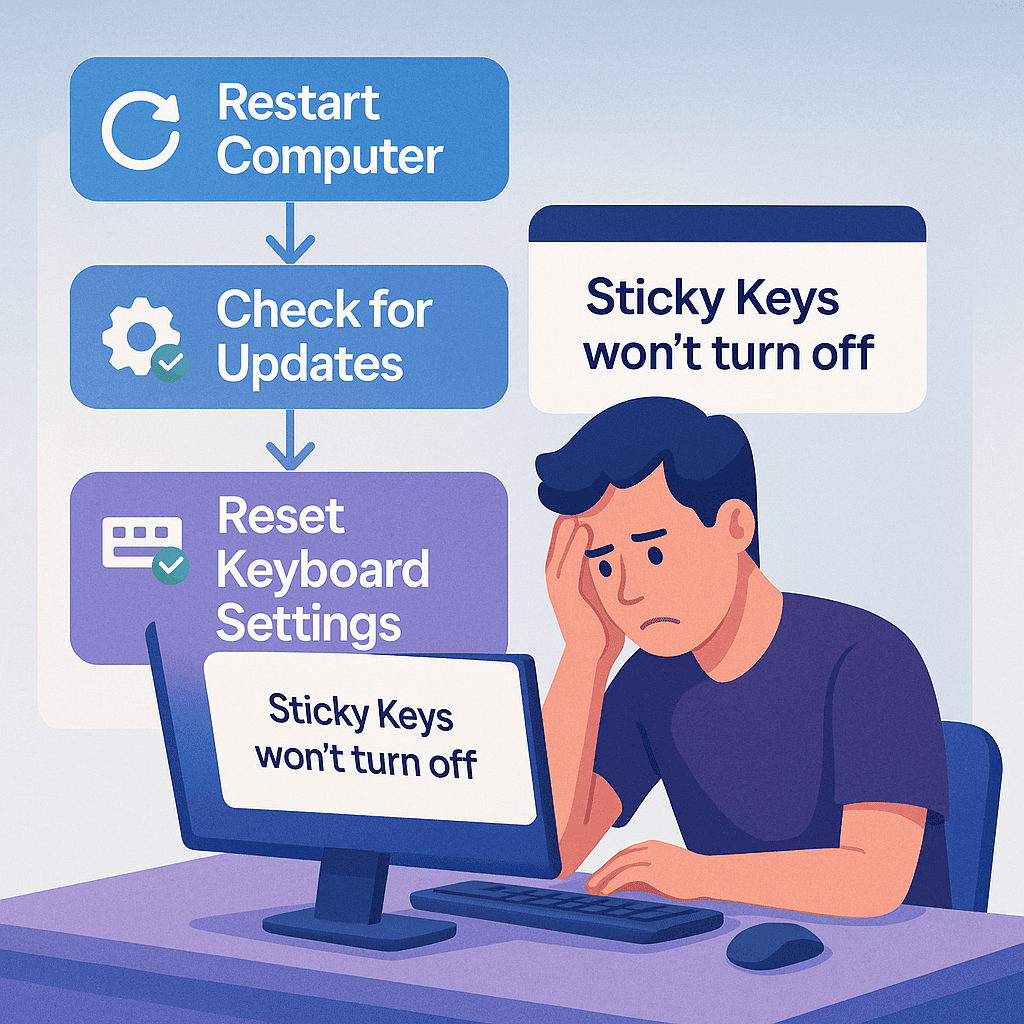
If you find that Sticky Keys won’t turn off despite following the usual instructions, don’t worry. Let’s explore some common troubleshooting tips to help resolve the issue.
Quick Troubleshooting Steps
Here are a few steps you can take if you’re having trouble with Sticky Keys:
| Step | Description |
|---|---|
| 1. Restart Your Computer | Sometimes, a simple restart can fix minor glitches. If Sticky Keys won’t turn off, try rebooting your system first. |
| 2. Check for Software Updates | Ensure your OS and keyboard drivers are up to date. Outdated software can cause functionality issues. |
| 3. Reset Keyboard Settings | If all else fails, reset keyboard settings to their default state. This can often resolve persistent Sticky Keys problems. |
By following these steps, you can effectively troubleshoot Sticky Keys issues and get your keyboard back to normal. For more comprehensive troubleshooting tips, check out our detailed guides.
Frequently Asked Questions about Turning Off Sticky Keys
What are Sticky Keys and why do they exist?
Sticky Keys is an accessibility feature designed to assist users who have difficulty pressing multiple keys simultaneously. By allowing modifier keys like Shift, Ctrl, and Alt to be activated one at a time, it makes typing and executing commands easier for individuals with mobility impairments. This feature is invaluable for creating a more inclusive and user-friendly computing experience.
How do I permanently disable Sticky Keys?
To permanently disable Sticky Keys, follow these steps:
- Access the Ease of Access settings.
- Navigate to Keyboard settings.
- Uncheck the option to enable Sticky Keys.
What should I do if Sticky Keys won’t turn off?
If Sticky Keys won’t turn off, don’t worry—there are a few simple steps you can take to resolve the issue. First, restart your computer. Sometimes a quick reboot can fix minor glitches.
Next, check for software updates. Keeping your operating system up-to-date can resolve many keyboard-related issues. Finally, try to reset your keyboard settings. This option is usually found in the keyboard settings menu, and it can restore default settings that might have been changed.
Can I re-enable Sticky Keys if needed?
Yes, you can re-enable Sticky Keys whenever necessary. Simply access the Ease of Access settings in your control panel, and check the option to enable Sticky Keys. Follow the same steps you used to disable it, and you’ll have it up and running in no time!
Are there any alternatives to Sticky Keys for accessibility?
If you find Sticky Keys challenging, Windows offers other accessibility features you might prefer. For example, you can enable the On-Screen Keyboard, which allows you to type using a mouse or touch input. Additionally, consider exploring third-party software like AutoHotkey, which lets you create custom keyboard shortcuts.
Adjusting your custom keyboard settings can also enhance accessibility. For instance, you can modify the keyboard repeat delay and rate to suit your typing speed. Overall, these alternatives can provide a more tailored and comfortable experience than Sticky Keys.
Conclusion
Understanding what Sticky Keys are and their purpose is crucial for maintaining accessibility and ease of use on your Windows device. By following our step-by-step instructions on how to turn off Sticky Keys on any Windows version (2025 guide), you can swiftly manage this feature to suit your needs. Should you encounter any issues, our troubleshooting tips will help you resolve them efficiently. Remember, your comfort and accessibility are paramount, and mastering these settings is a step toward a smoother computing experience.