📌 Quick Summary
To create and share a Zoom meeting link:
- Sign in to Zoom
- Click Schedule a Meeting or New Meeting
- Copy the Invite Link or Invitation
- Share via email, calendar, chat apps, or social media
🧭 Table of Contents
- Step 1: Sign In to Zoom
- Step 2: Create a Zoom Meeting
- Step 3: Get the Invite Link
- Step 4: Share the Zoom Meeting Link
- Tips for Sharing Professionally
- Automate Zoom Links with Tools
Step 1: Sign In to Zoom
Go to zoom.us and log in using your account credentials. You can also use the Zoom desktop or mobile app.
If you don’t have an account, create a free Zoom account.
Step 2: Create a Zoom Meeting

You have two options:
🟠 Option A: Start a Meeting Now
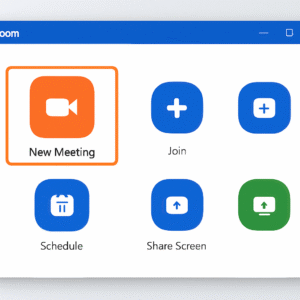
- Click New Meeting from your Zoom dashboard
- This creates an instant meeting with a unique ID
🔵 Option B: Schedule a Future Meeting
- Click Schedule
- Add topic, description, time, duration, timezone
- Customize video/audio settings
- Add passcode or waiting room for security
- Click Save
You’ll be taken to a summary page with your meeting details and the invitation link.
Step 3: Get the Invite Link
📍 Option 1: From the Zoom Dashboard
- Click the meeting
- Click Copy Invitation or Copy Invite Link
📱 Option 2: From Mobile App
- Tap Meetings tab > select meeting
- Tap Invite > Copy to Clipboard
Step 4: Share the Zoom Meeting Link
✅ Share via Email
Paste the link into your email body manually or use Zoom’s Gmail/Outlook integrations.
💬 Share via Messaging Apps
Post in Slack, Teams, WhatsApp, or SMS. Make sure the recipient has access.
📆 Share in a Calendar Event
Add the link to your Google Calendar or Outlook invite in the event description.
🌐 Share on Social Media
If it’s a public meeting or webinar, post the link on Twitter, LinkedIn, or Facebook.
Reminder: Enable “Join before host” and turn off passcodes if you’re sharing links publicly.
🔒 Tips for Sharing Professionally
- Use your Personal Meeting ID (PMI) only with trusted contacts
- Always enable Waiting Room for sensitive meetings
- Use a custom Zoom link (for licensed users)
- Add a meeting agenda in the invite to boost clarity
⚙️ Automate Zoom Links with Tools
Want to save time? Use automation tools like:
🔄 Zapier + Zoom
- Automatically create meetings from new calendar events or form responses
📅 Calendly + Zoom
- Add Zoom links to appointments booked through Calendly
🟪 Doodle + Zoom
- Schedule group meetings with built-in Zoom links
Leave a Reply